
| Preisplan | Free, Growth |
| Available in | Switzerland |
Summary
Besides ordering QR Codes or Stickers to be professionally printed, you can download your TWINT QR code and print it yourself. This article explains how to print nine QR codes on one page, matching the layout of our standard sticker set.
Before you begin
Make sure that:
- You have access to the Hub and permission to open the Promote tab.
- You have a printer connected to your computer.
- You can open the downloaded QR code file on your computer.
Download and print your QR code
Step 1: Open the Promote tab
-
Log in to the RaiseNow Hub and open the details of your touchpoint solution.
-
Navigate to the Promote Tab.
Step 2: Download the QR code
Click the Download button and choose the appropriate package:
- Standard package for PNG format.
- High-resolution package for SVG format.
Step 3: Open the print dialog
Open the downloaded QR code file and open your computer’s print dialog.
You can usually open the print dialog using Ctrl + P on Windows or Command + P on Mac.
Step 4: Set up the page layout
Print settings vary depending on your operating system and the programme you use to open the file.
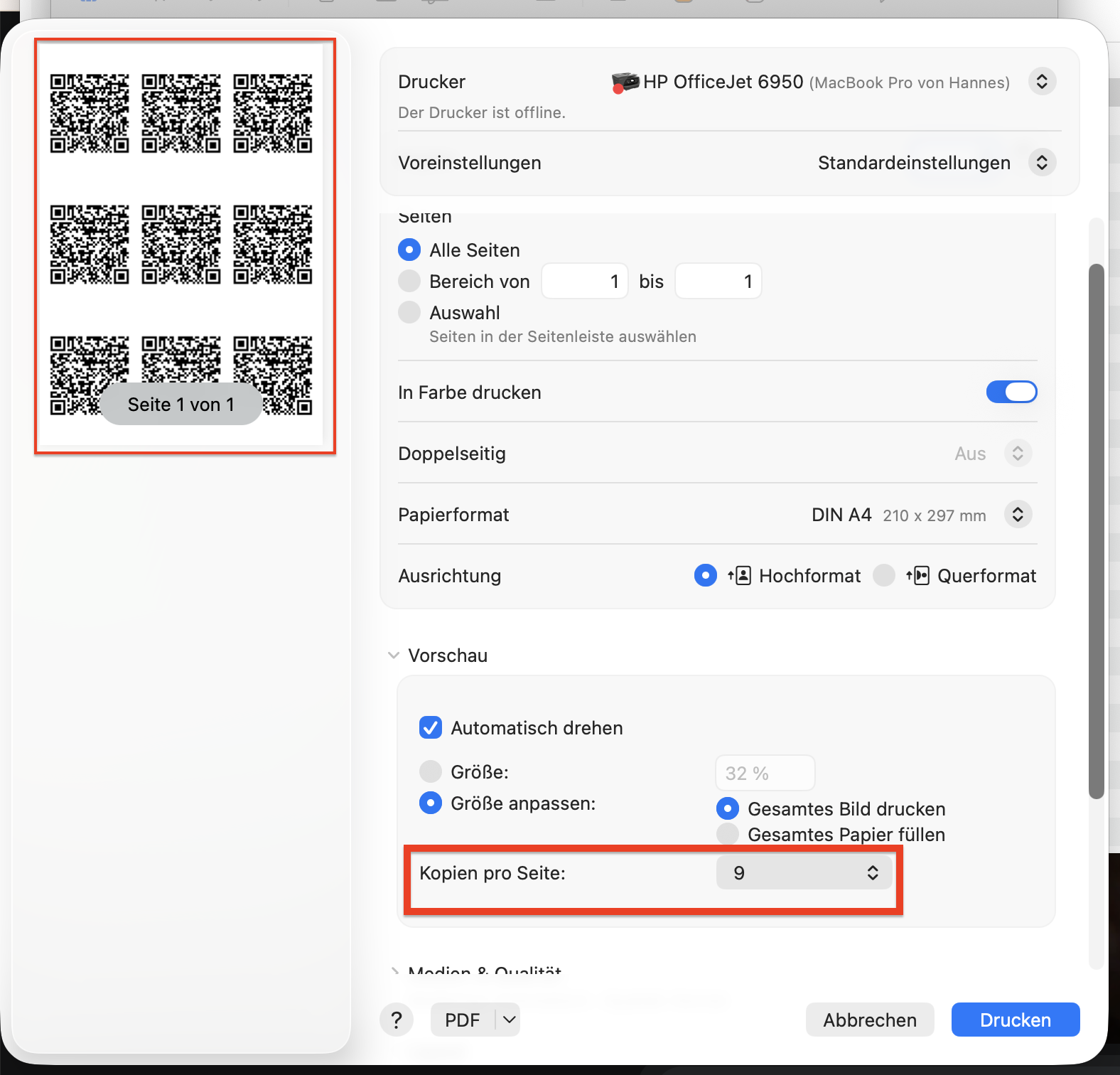
Look for a setting called Pages per sheet, Pages per page or a similar option. You can usually find it under Layout, Page setup or Multiple in the print dialog.
Select 9 pages per sheet or choose a 3 × 3 layout, depending on the available options. Check the print preview to make sure nine QR codes appear on a single sheet before printing.
Step 5: Print
Click Print to print your QR codes.
Once printed, check that the QR codes are sharp, fully visible, and not cropped.
| Important: Test a printed QR code with your TWINT app before using it. Make sure it scans correctly. |
Comments
0 comments
Please sign in to leave a comment.